
Activation Guide
Turn your ReviewCard on
before the next customer
walks away
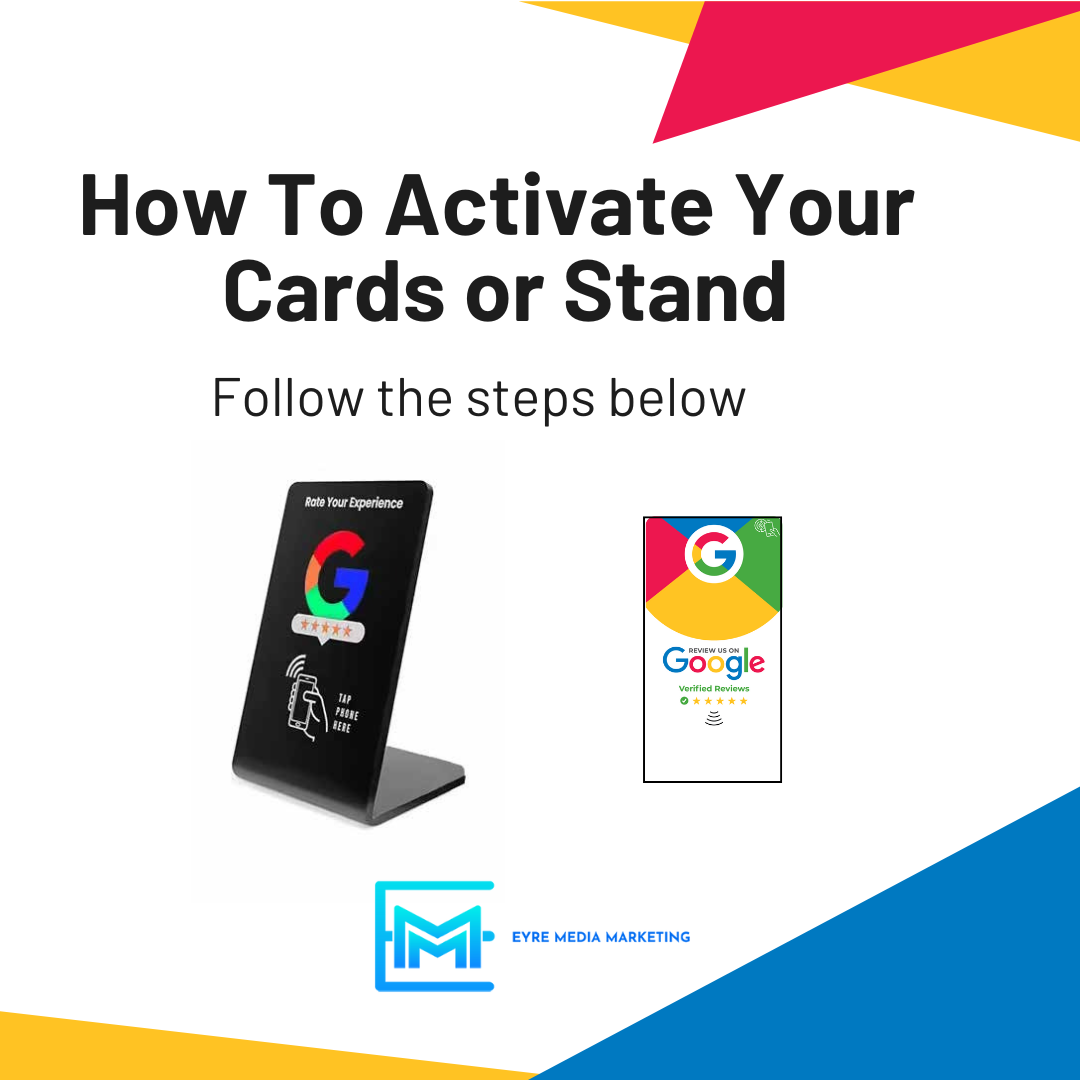
Activate your Tap Card or Review Stand, test the tap and QR scan, then start sending happy customers straight to your Google review screen while the experience is still fresh.
Why this matters
Most happy customers do not leave reviews later.
They get busy. They forget. They do not want to search for your business. Your ReviewCard removes the friction by making the next step obvious: tap, scan, and leave the review.
Less explaining
Customers do not need to search for your business or type anything in.
Faster review asks
Use it right after the sale, service, appointment, meal, or visit.
Cleaner follow-through
A simple tap or scan is easier than hoping someone remembers later.
Setup steps
Activate it once. Use it every day.
Follow these steps before handing the card or stand to customers.
Tap or scan your ReviewCard
Use your phone to tap the NFC chip or scan the QR code to open the activation page.
Follow the activation screen
Complete the setup steps shown on your device. Most activations only take a few minutes.
Test it before customers use it
Tap it and scan it yourself to make sure it opens the correct Google review screen for your business.
Ask while the experience is fresh
The best time to ask is right after a good experience, before the customer leaves or gets distracted.
Video tutorial
Watch the quick setup video
Tip: enable sound
Need help?
Quick activation answers
Setup + troubleshooting
How do I activate my ReviewCard Tap Card?
How do I activate my Review Stand?
What if my phone does not open the page when I tap?
How long does activation take?
What should I test before using it with customers?
What should I do if I still need help?
Want the card to do more?
Turn Google reviews into repeat business.
Your Tap Card helps customers leave reviews faster. Smart Capture takes it further by helping you capture customer emails, follow up automatically, and turn happy customers into repeat business.